To show days remaining on your iPhone Lock Screen, save an event in Lumiday, touch and hold your Lock Screen, then open Customize and add a Lumiday widget. Follow the five illustrated steps below.
Before you start, install and open Lumiday and save the date you want to display. The screenshots use Simplified Chinese and a sample trip home; use your own birthday, anniversary or travel date. On-screen labels may differ by language and iOS version.
What it looks like
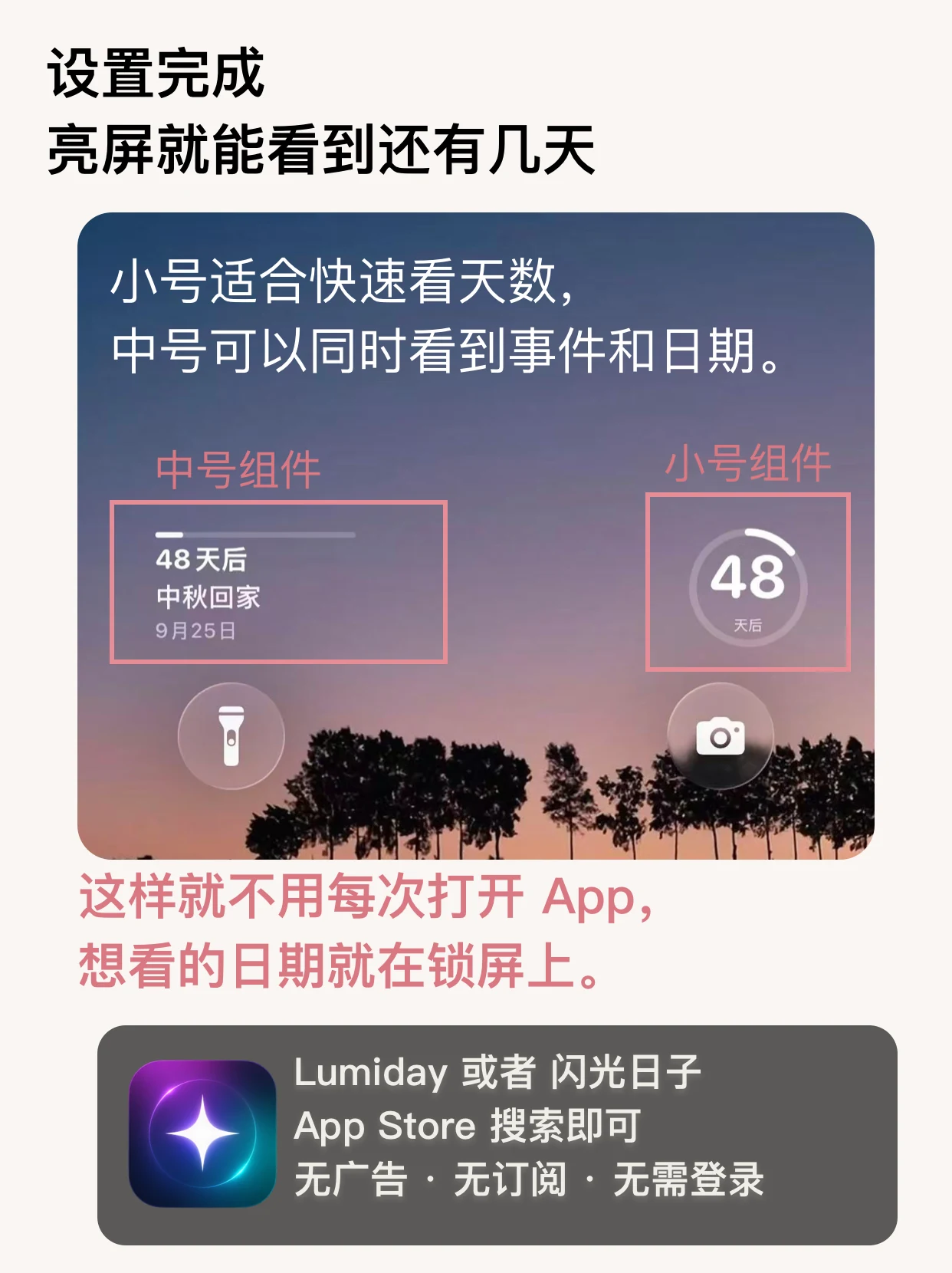
This guide uses “Mid-Autumn Trip Home” as an example. Replace the name and date with your own event.
Create a countdown
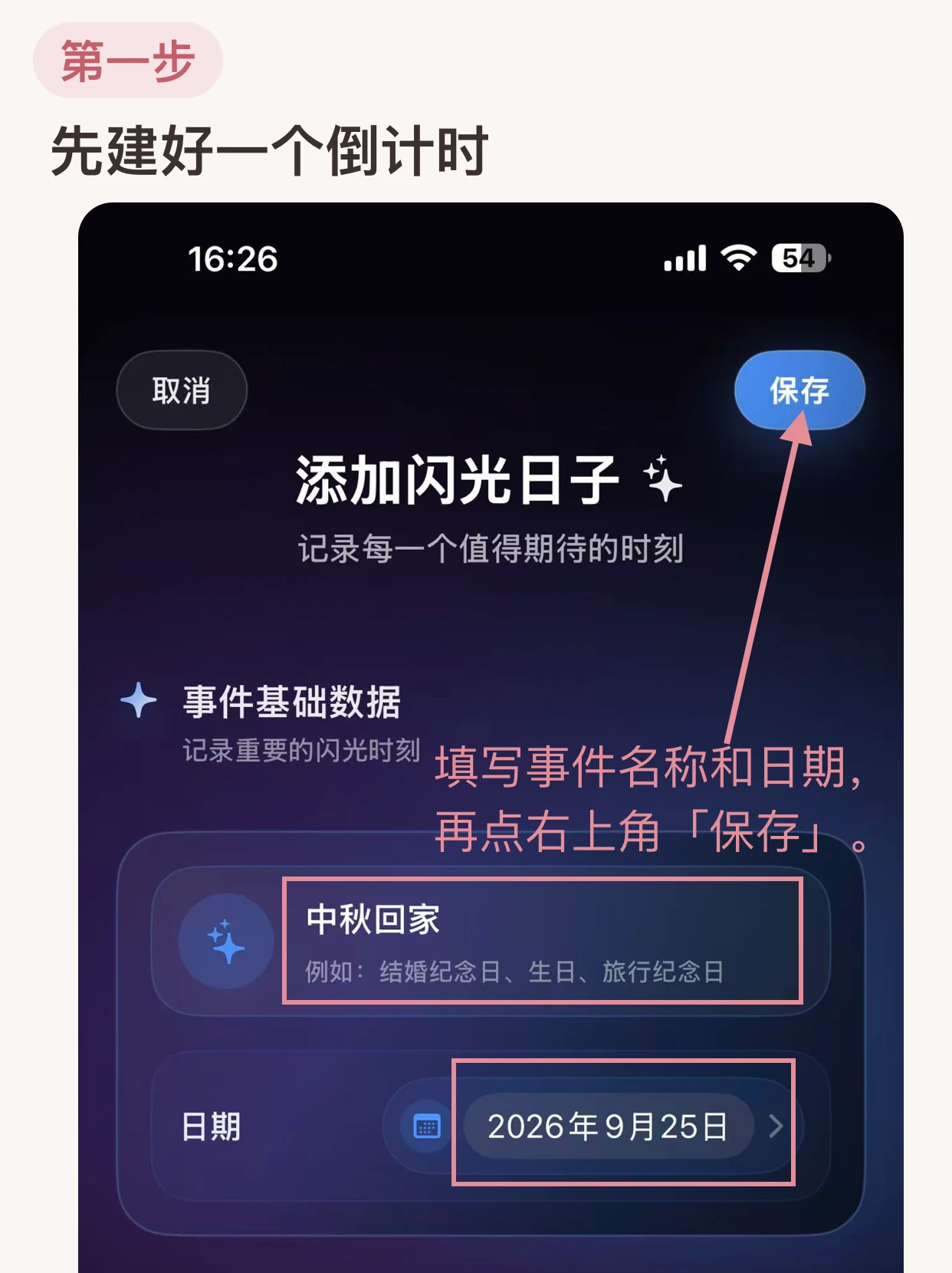
Open Lumiday, enter an event name, choose the target date, then tap Save.
Customize your Lock Screen
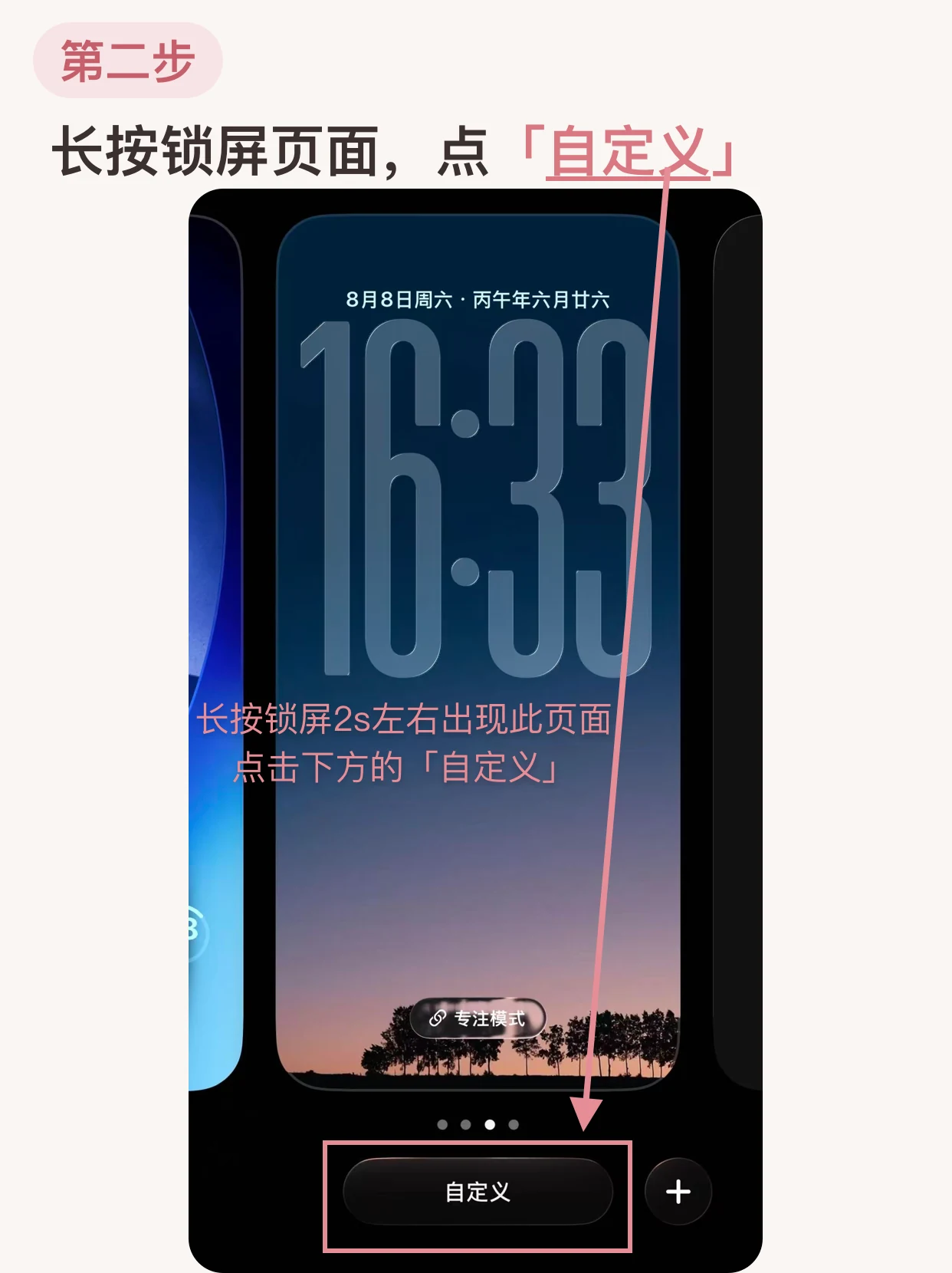
Return to the iPhone Lock Screen. Touch and hold it for about two seconds, then tap Customize.
Tap Add Widgets
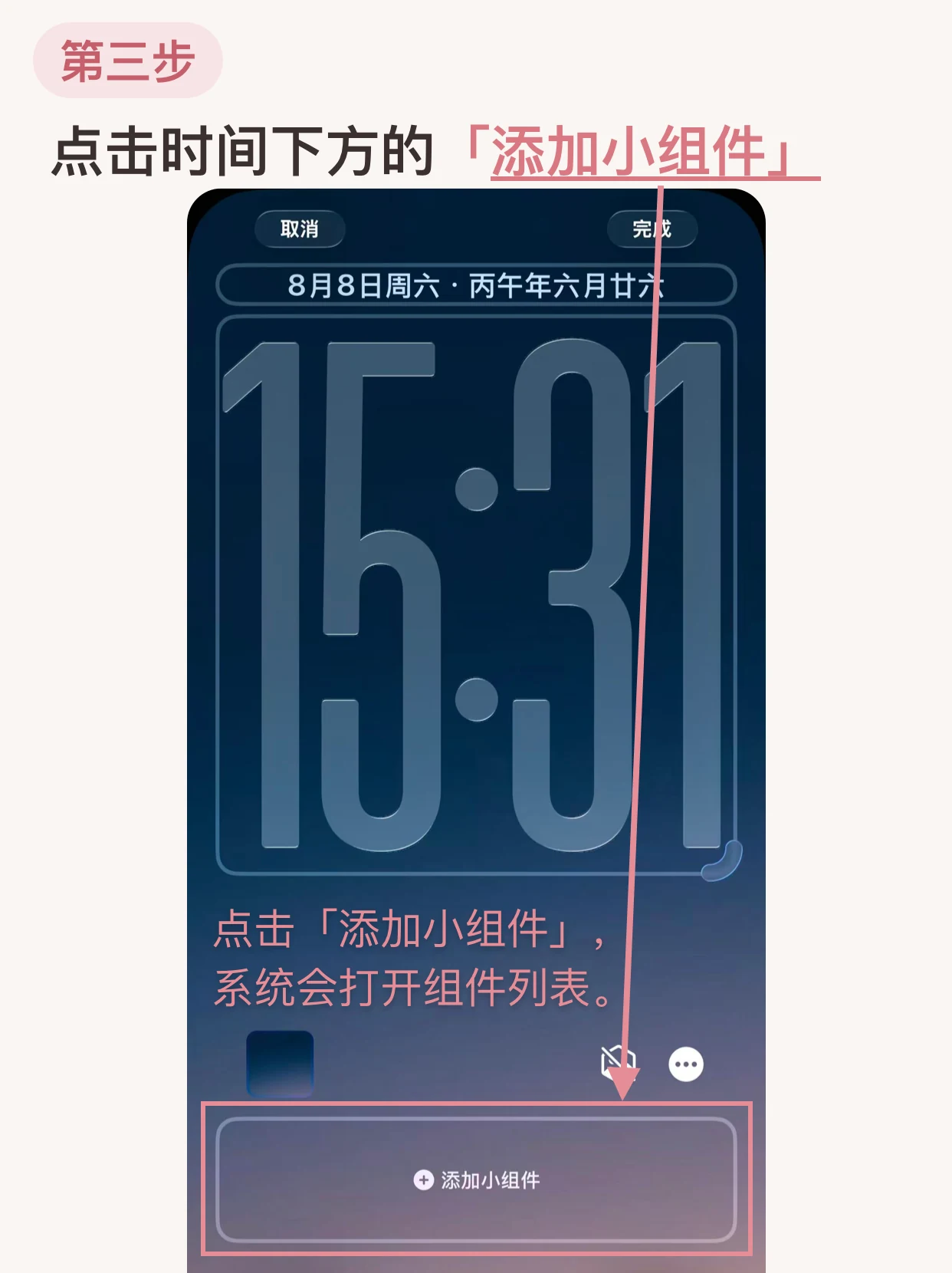
Tap the Add Widgets area below the clock to open the widget list.
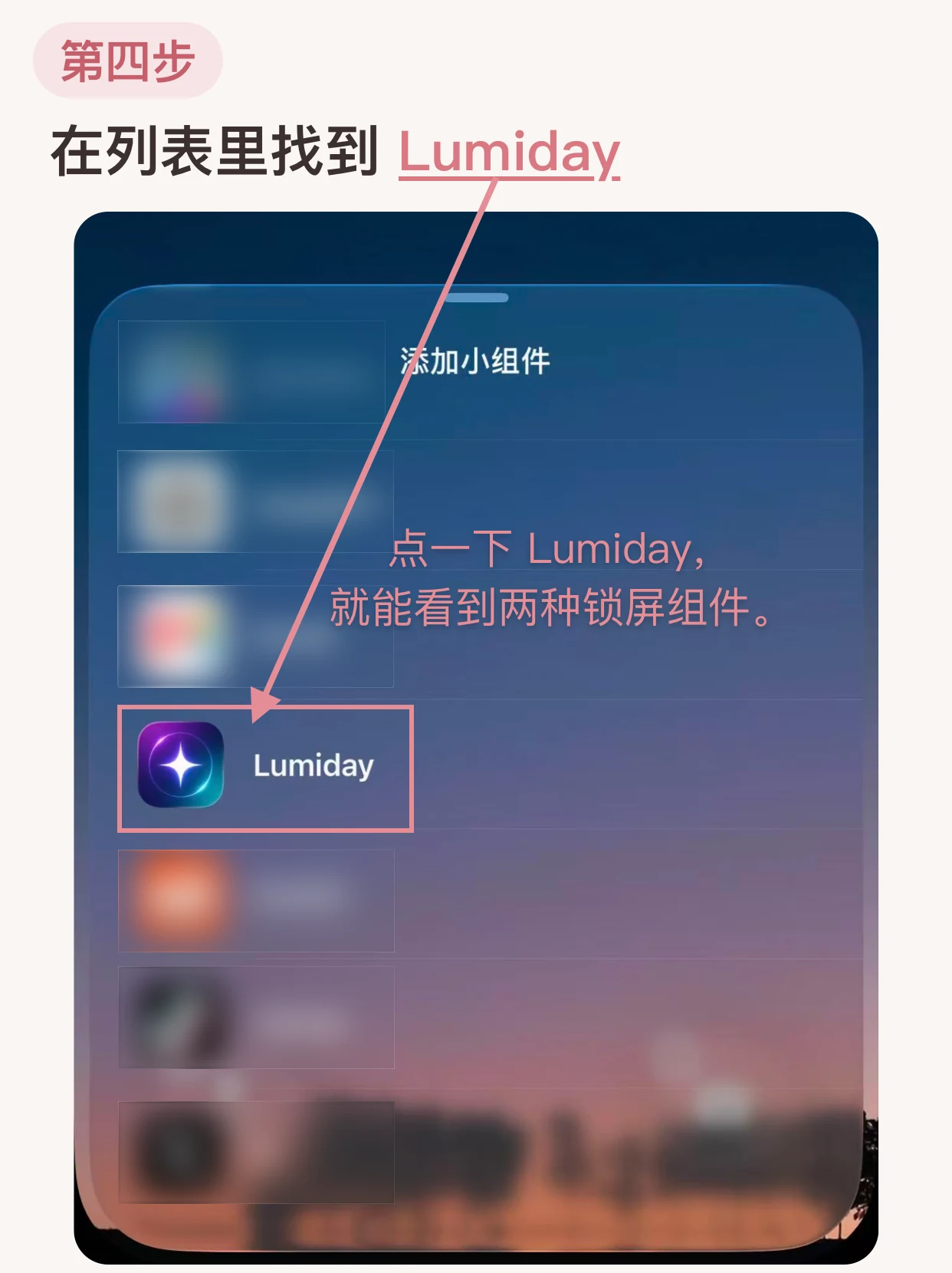
Find Lumiday
Find and tap Lumiday in the widget list to see its available Lock Screen widgets.
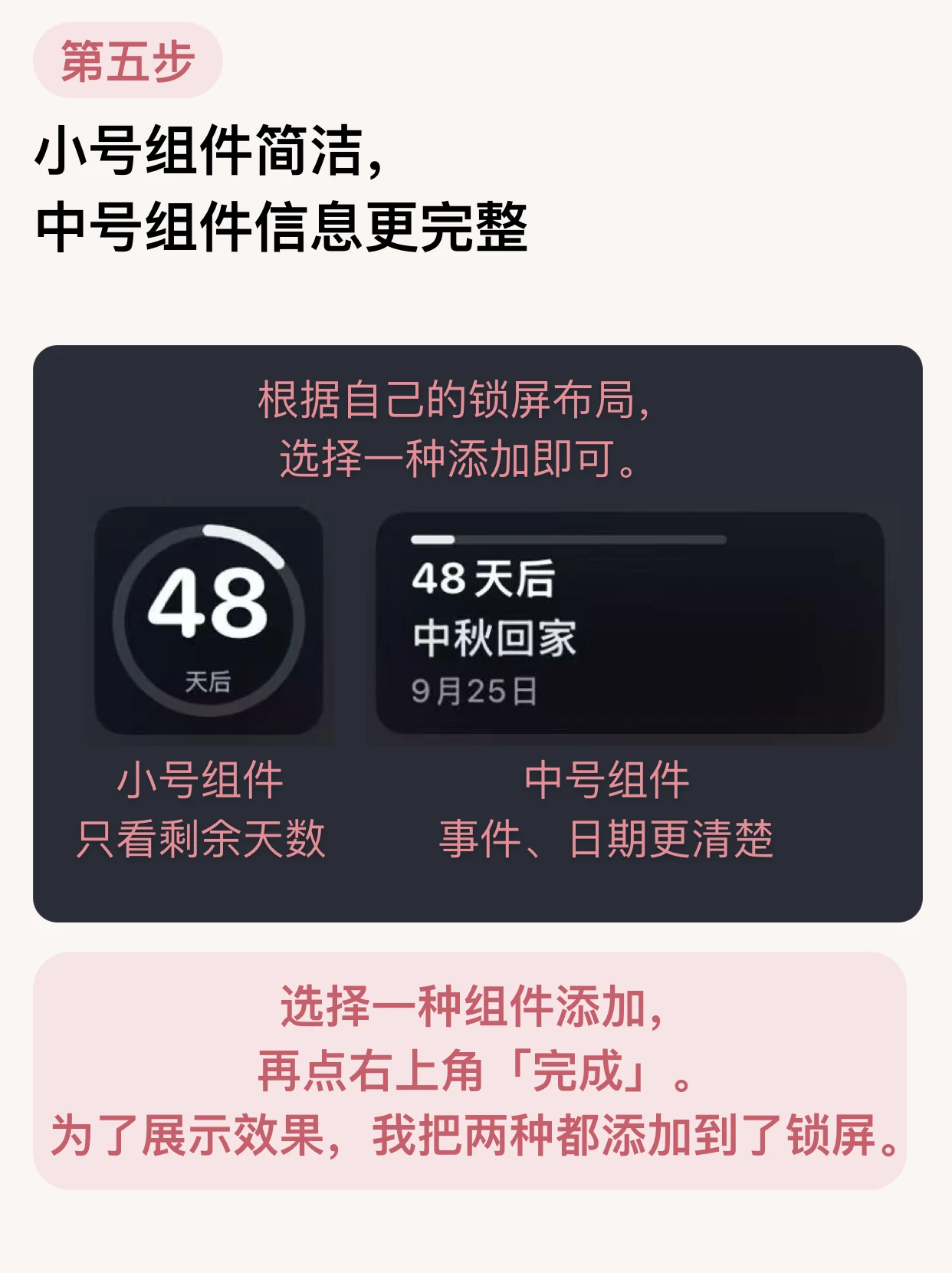
Choose a small or rectangular widget
The circular widget is ideal for quickly checking the remaining days. The rectangular widget also shows the event name and date. Add one, then tap Done.
About countdowns on the iPhone Lock Screen
What if there is no room for another Lock Screen widget?
Remove an existing widget in Lock Screen customization to make room for Lumiday. You can also choose the smaller circular widget.
Can the iPhone Lock Screen show a countdown?
Yes. After adding a Lumiday Lock Screen widget, wake your iPhone to see the remaining days.
What is the difference between the two widget sizes?
The circular widget focuses on the remaining days. The rectangular widget also shows the event name and date.
Do I need to add both widget sizes?
No. Choose the one that best fits your Lock Screen layout.
Do I need an account to use Lumiday?
No. Lumiday requires no account and contains no ads. Your important dates stay on your device.
Keep the date you want to see on your Lock Screen.
Lumiday is a countdown and date counter app for iPhone.
Download on the App Store