To see two countdowns on your iPhone Lock Screen, add two separate rectangular Lumiday widgets, then choose a specific event for each. This guide uses a trip and a birthday to show the full setup.
What you will get
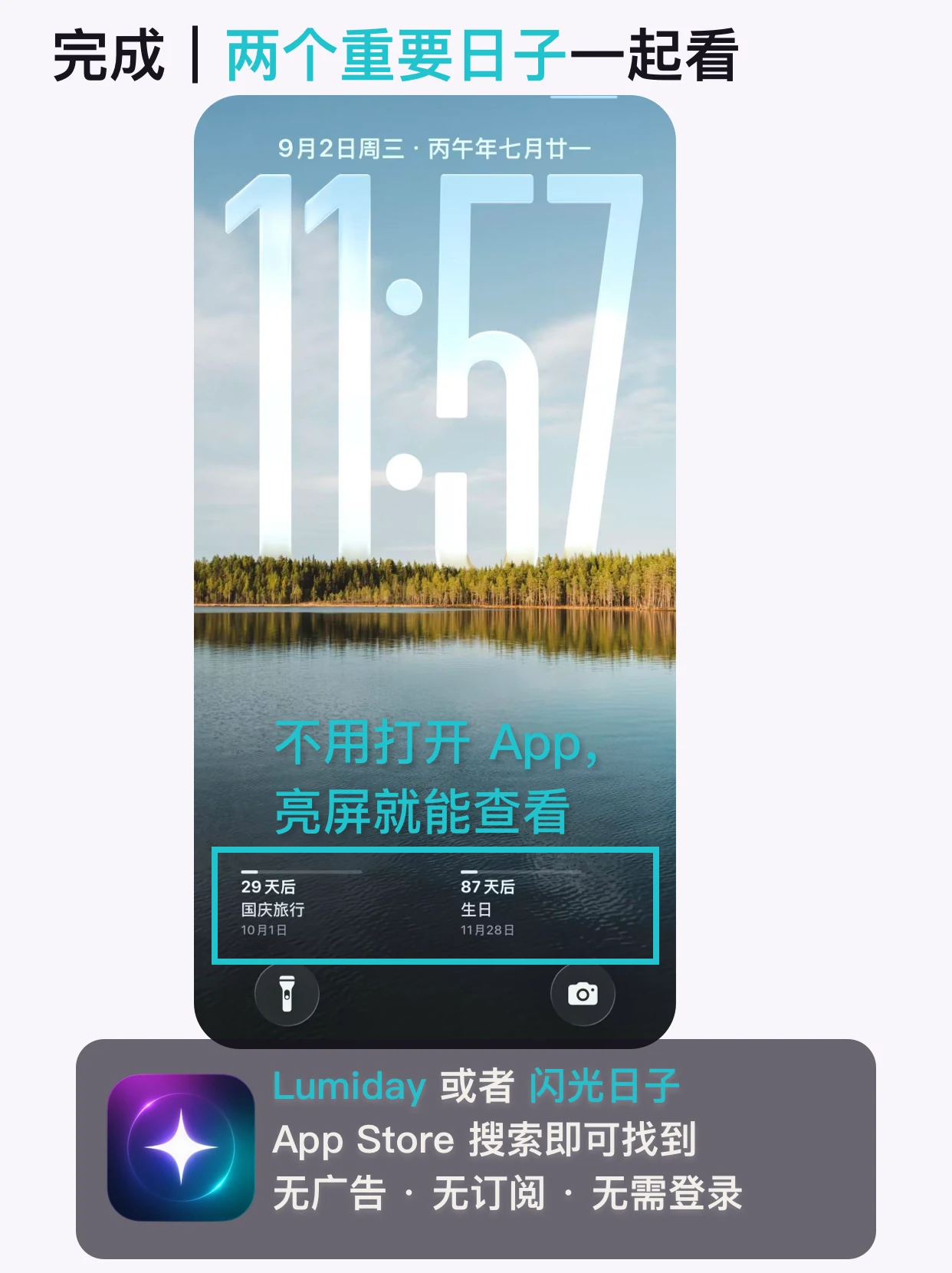
This example uses a trip and a birthday. You will add two independent widgets and choose one event for each. The screenshots use Simplified Chinese and sample events. Use your own dates; labels may vary by language and iOS version.
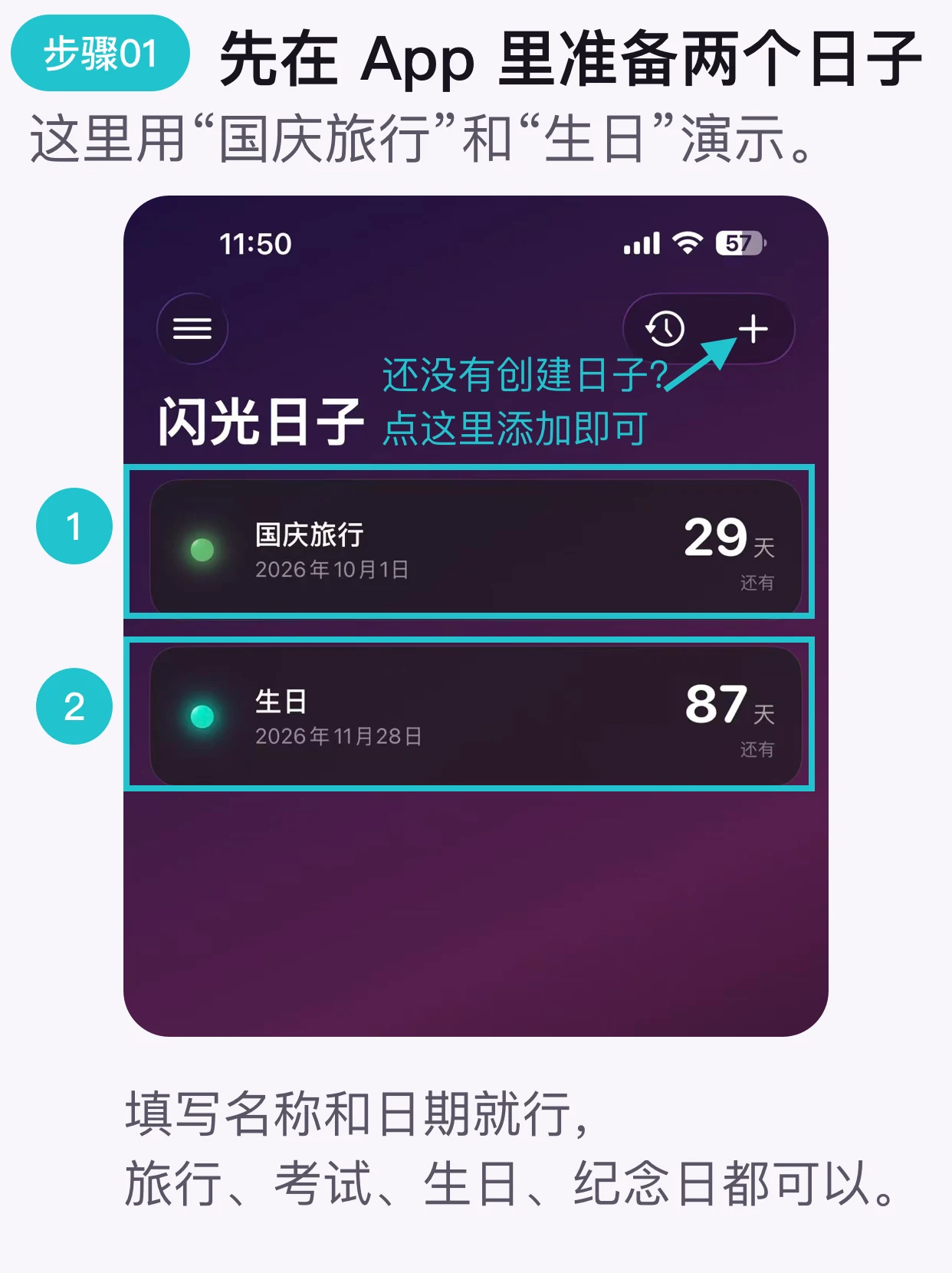
Prepare two countdowns
Create the two events you want to show in Lumiday. If needed, tap the “+” button to add one.
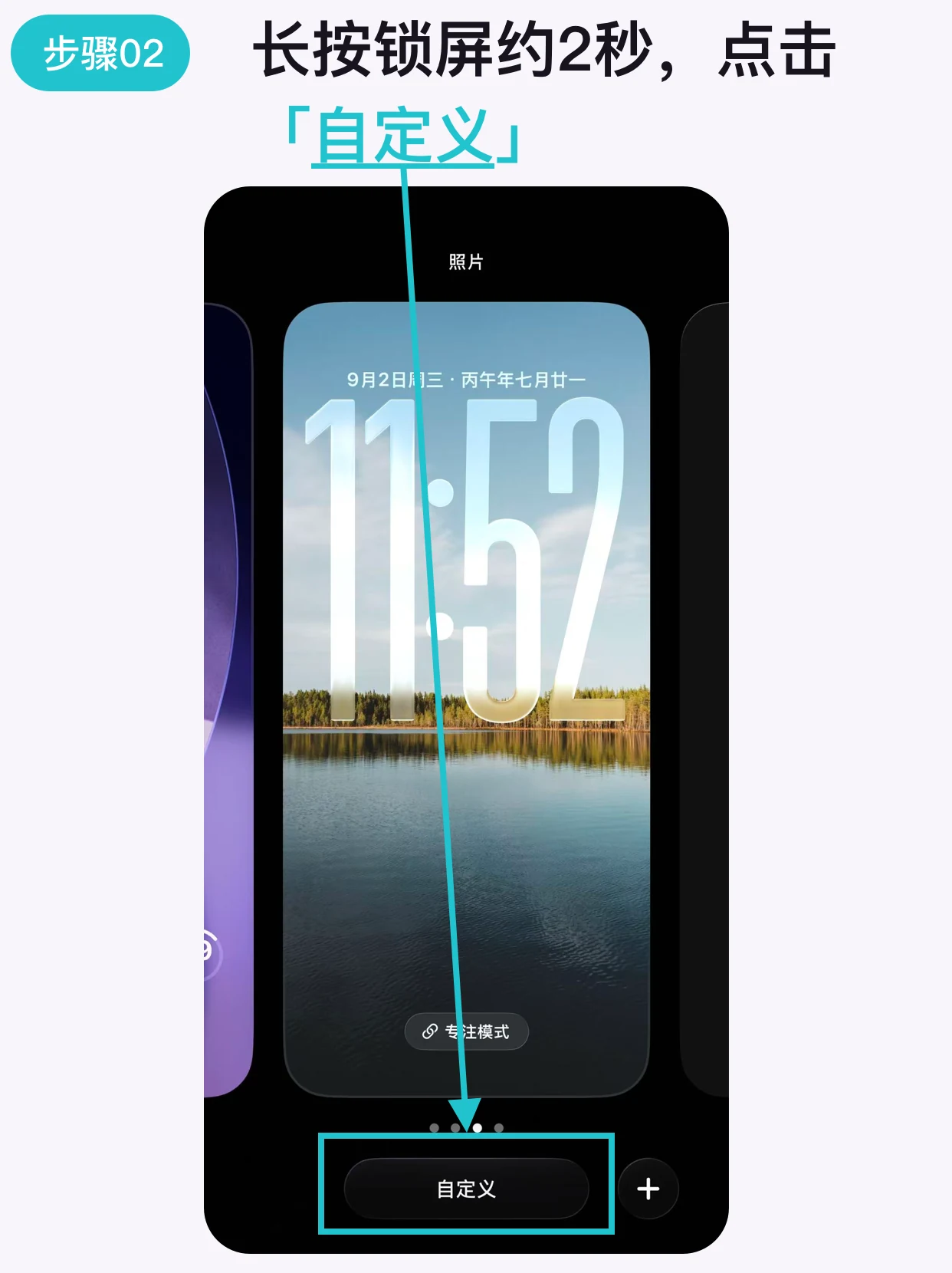
Touch and hold the Lock Screen
Touch and hold your iPhone Lock Screen for about two seconds, then tap Customize.
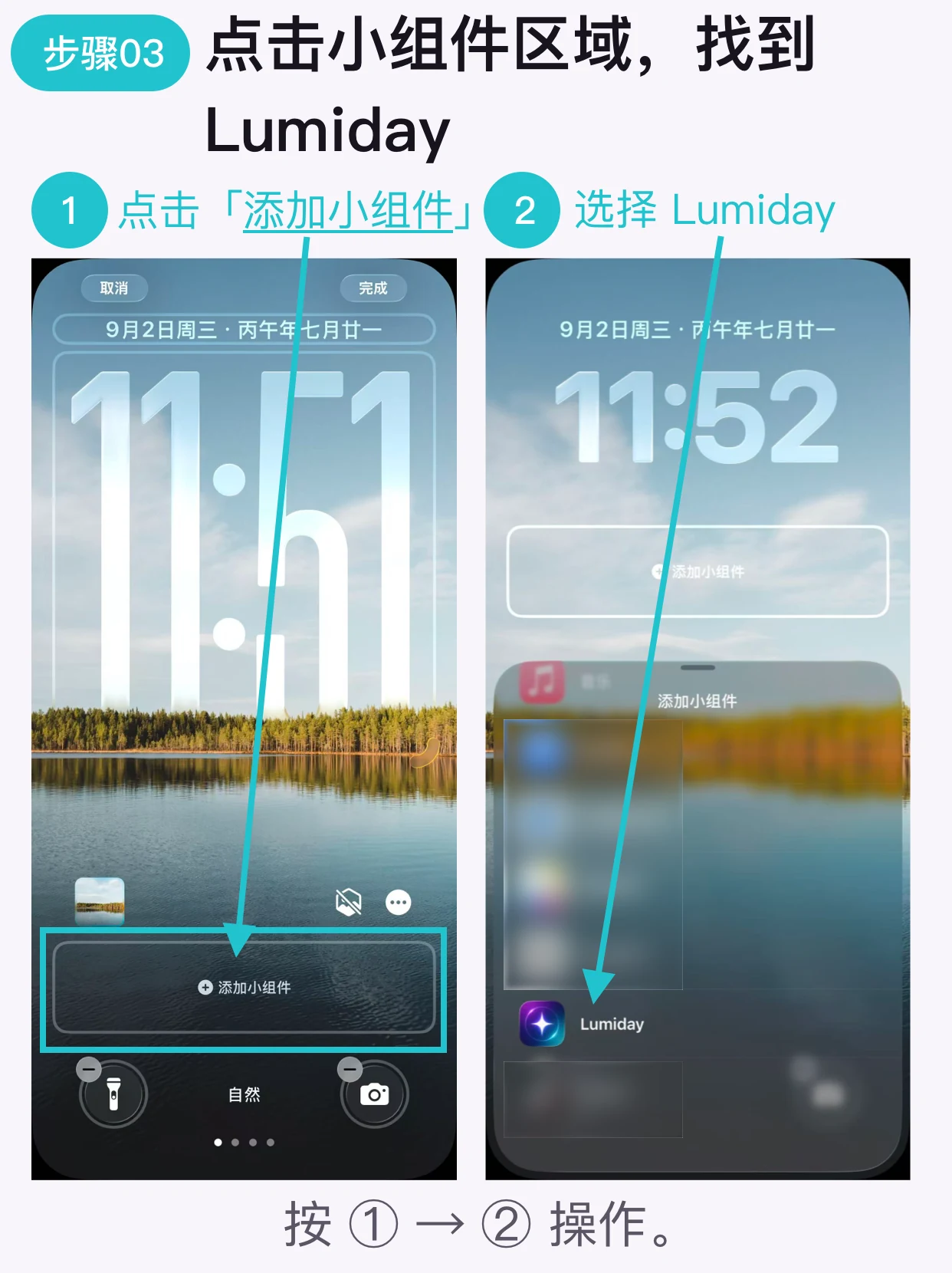
Find Lumiday
Tap the widget area below the clock, then choose Lumiday from the widget list.
Add two rectangular widgets
Tap the rectangular widget twice. Both widgets may show the same event at first; that is normal.
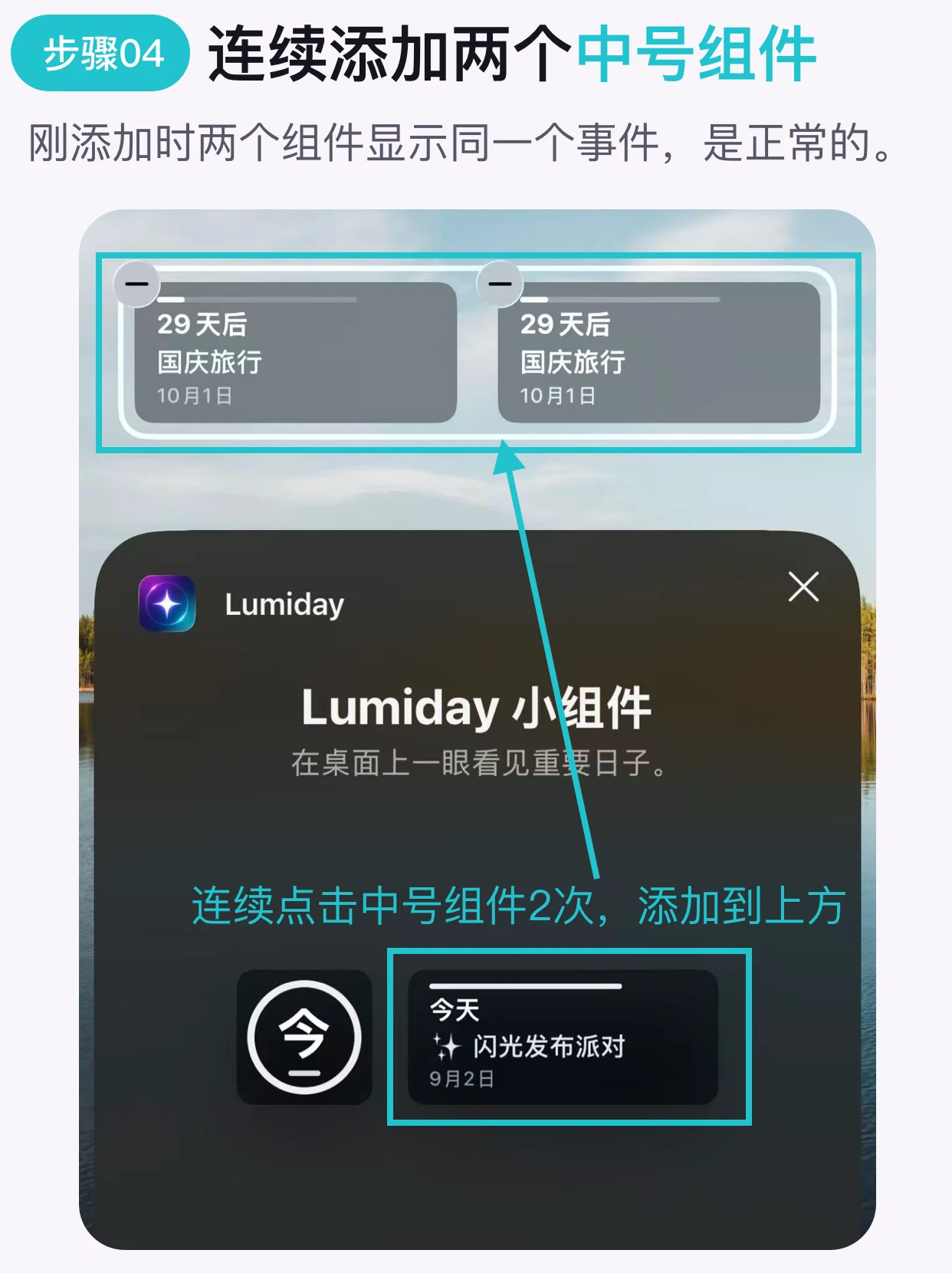
Switch to “Specific Event”
Tap one widget and change Event Type from Smart Event to Specific Event.
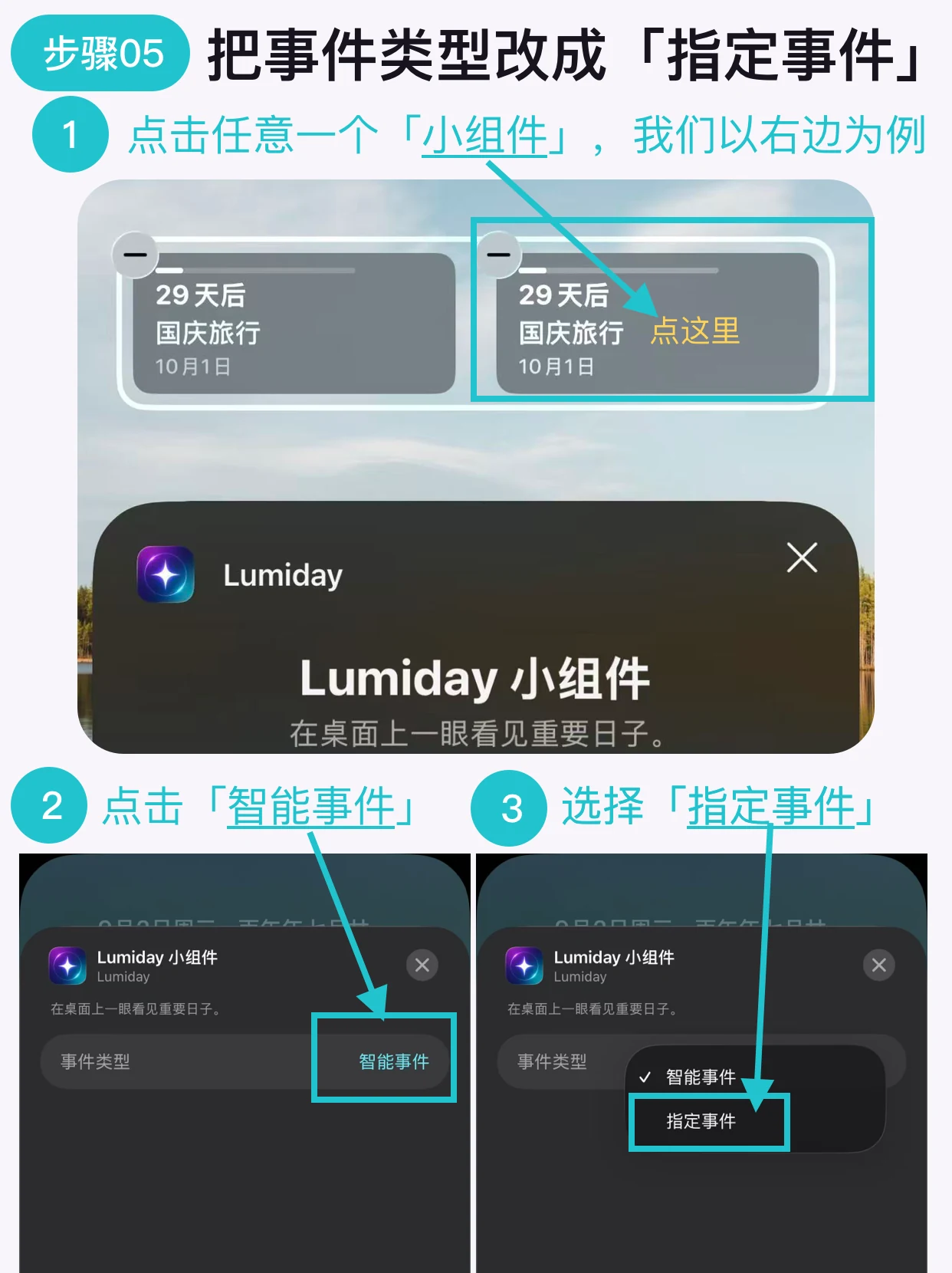
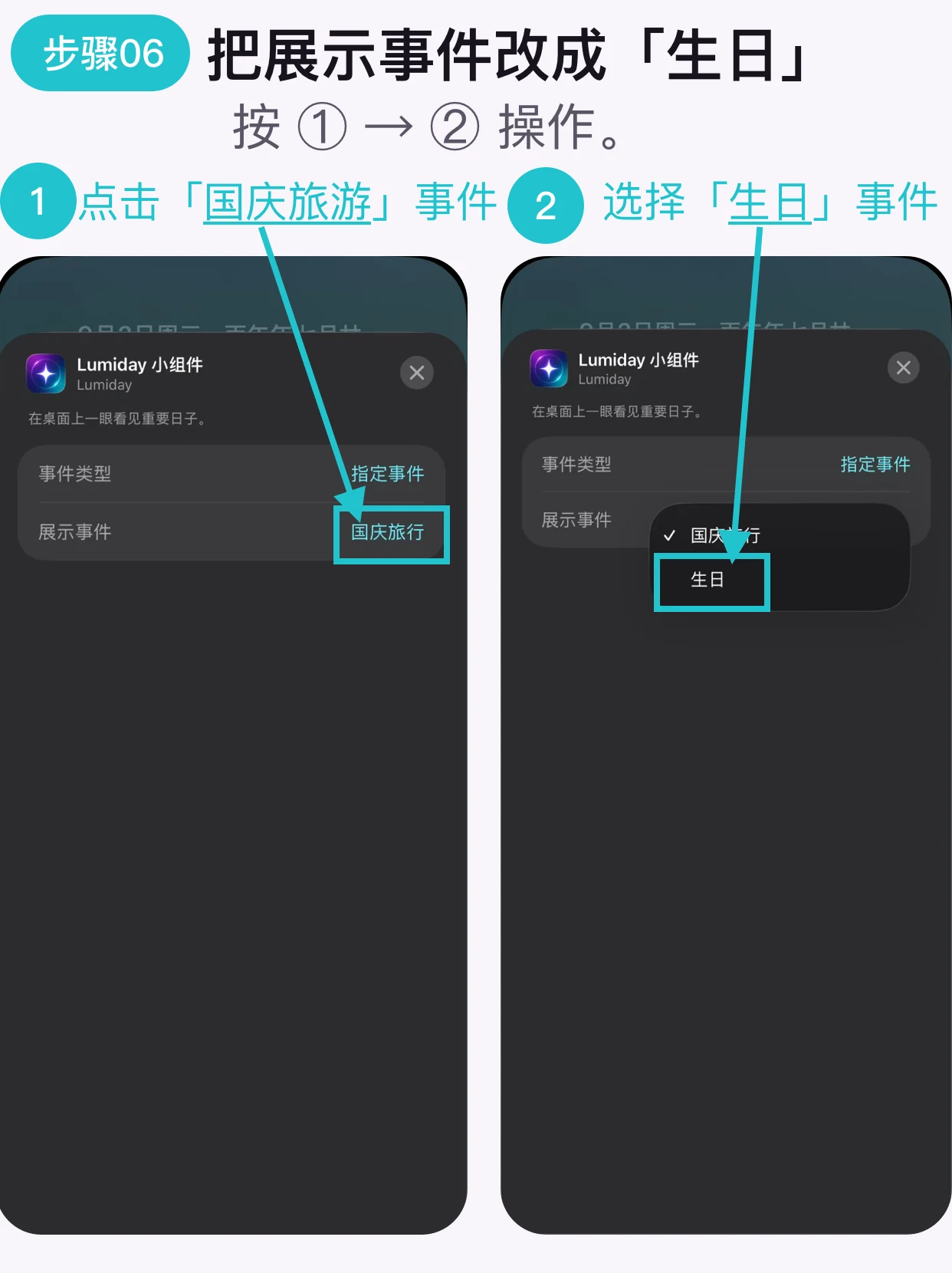
Choose a different event for each widget
Choose the trip for the first widget. Open the second widget, also set Event Type to Specific Event, then choose the birthday. Configure each widget separately.
Tap Done
Return to the Lock Screen editor and tap Done. Both countdowns now appear together.
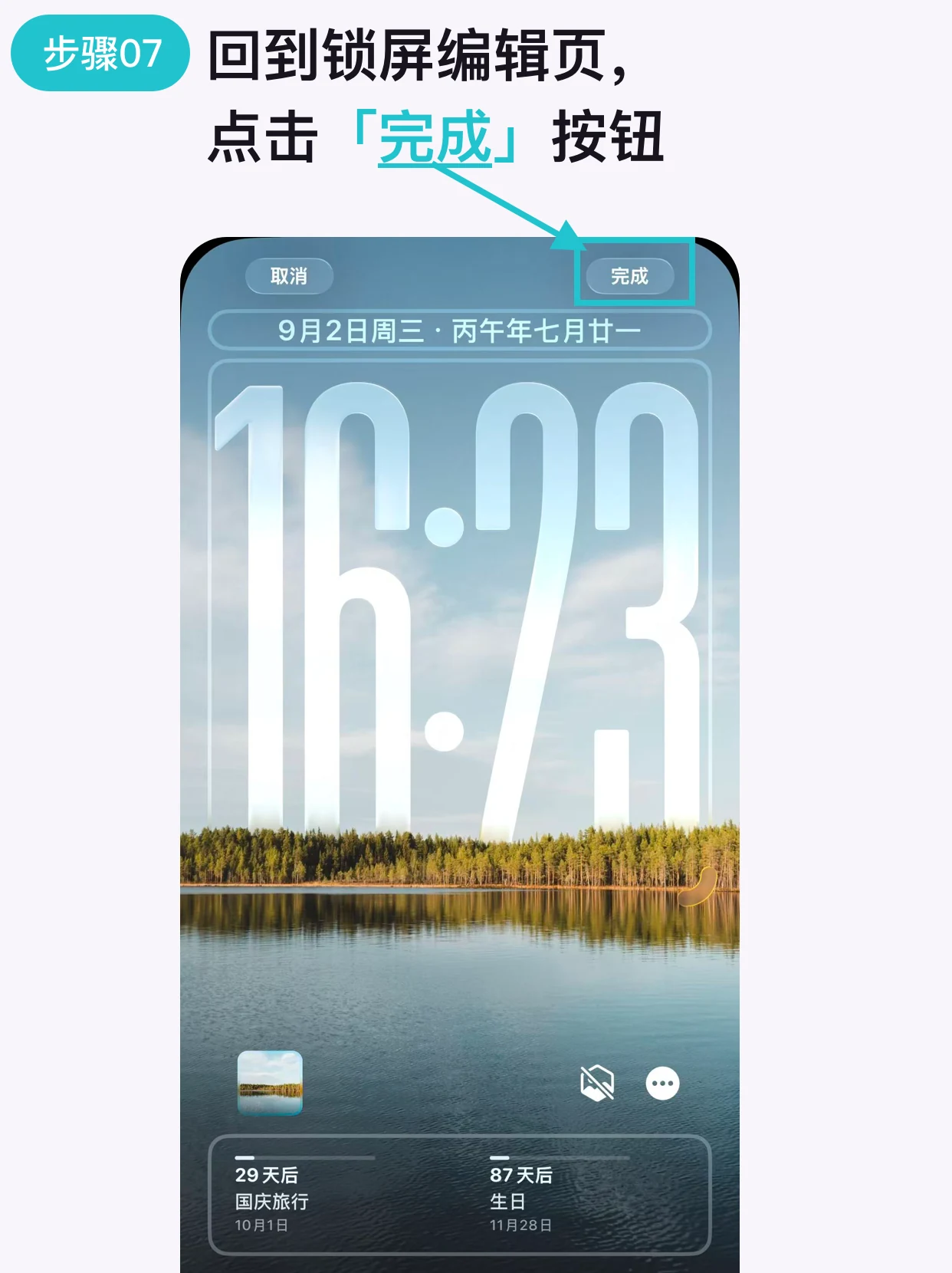
Two countdowns on the Lock Screen
Why do both widgets show the same event at first?
That is normal. Open each widget, change Event Type to Specific Event, and choose a different event.
Why use the rectangular widget?
It shows the days remaining, event name, and date, making the two countdowns easier to tell apart.
Does one widget show two events?
No. This setup uses two independent widgets, with one selected event in each widget.
Can I choose a Home Screen layout for these Lock Screen widgets?
No. Lock Screen widgets have their own styles and do not offer Home Screen layout choices.
What if there is no room for two rectangular widgets?
Remove other widgets from the Lock Screen widget area to make room, then add two rectangular Lumiday widgets. Choose a different event for each one.
Keep two important dates together on your Lock Screen.
Lumiday is a countdown app for iPhone.
Download on the App Store