To keep multiple countdowns visible on your iPhone Home Screen, add separate Lumiday widgets. Start with two: touch and hold each widget, tap Edit Widget, then select its event and layout.
What it looks like
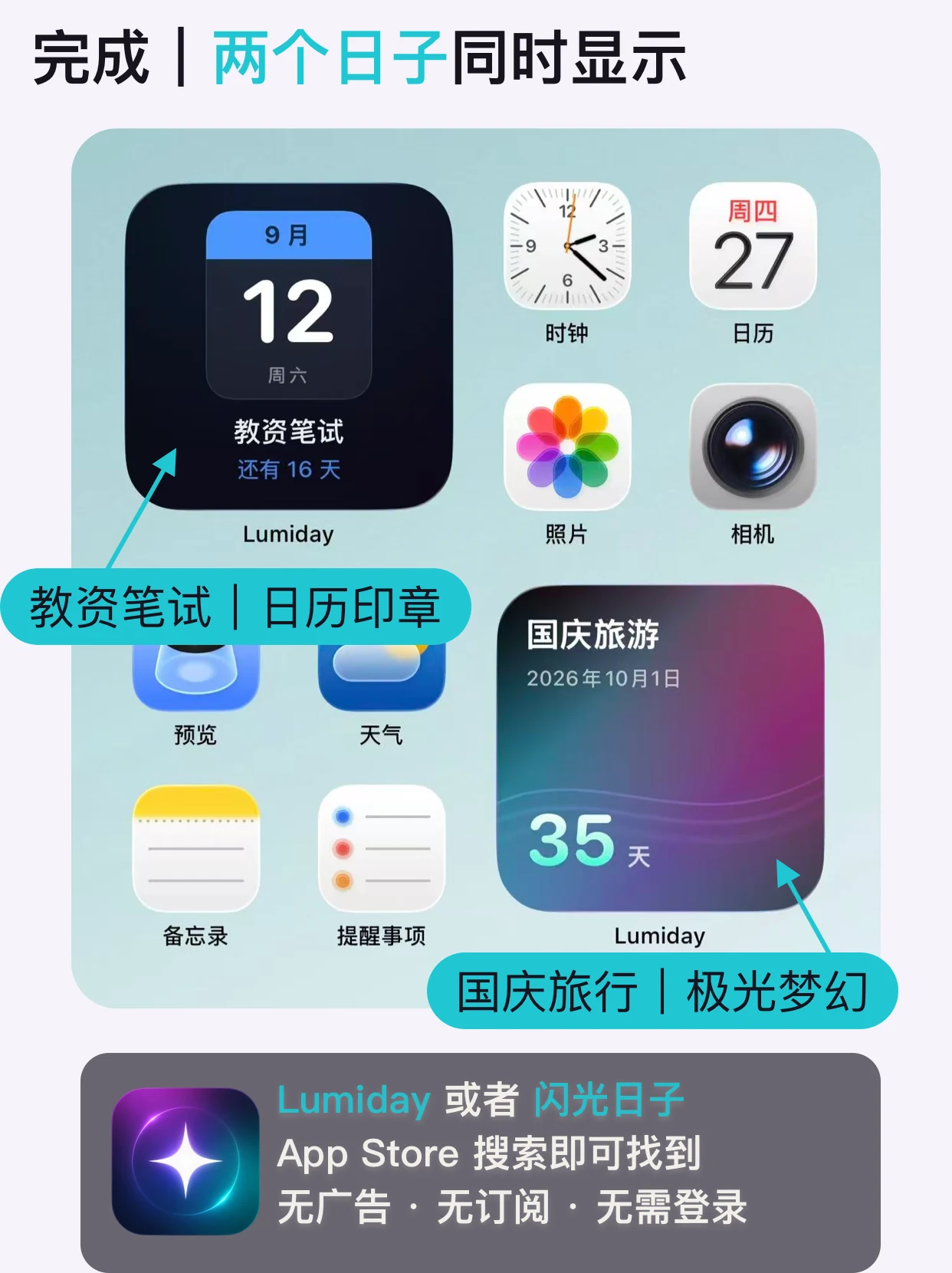
Choose a different event for each widget. The screenshots use Simplified Chinese and sample events; use your own dates. Labels may vary by language and iOS version.
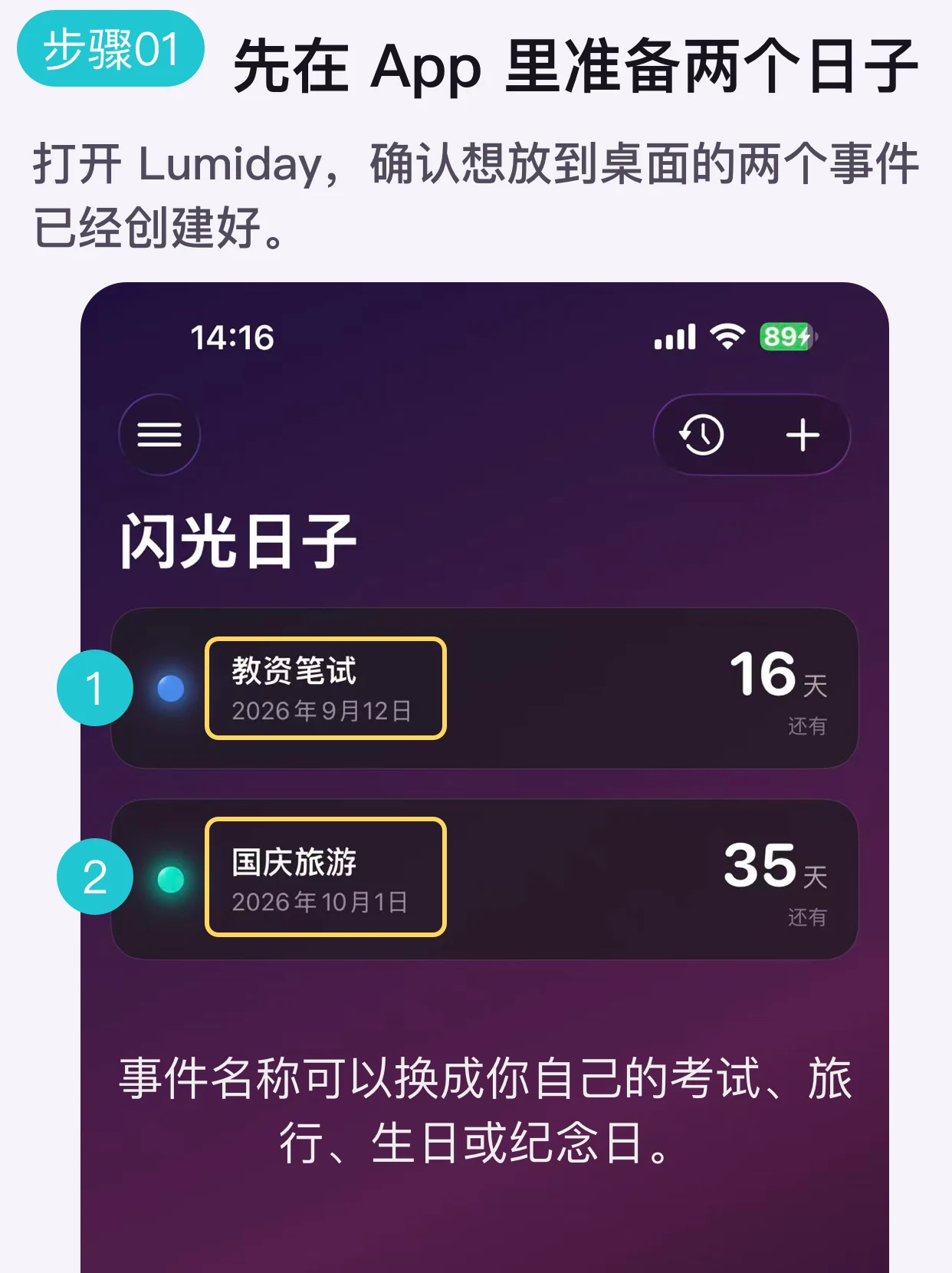
Save two countdown events
Open Lumiday and create the two events you want to see. Check their names and dates, then save them.
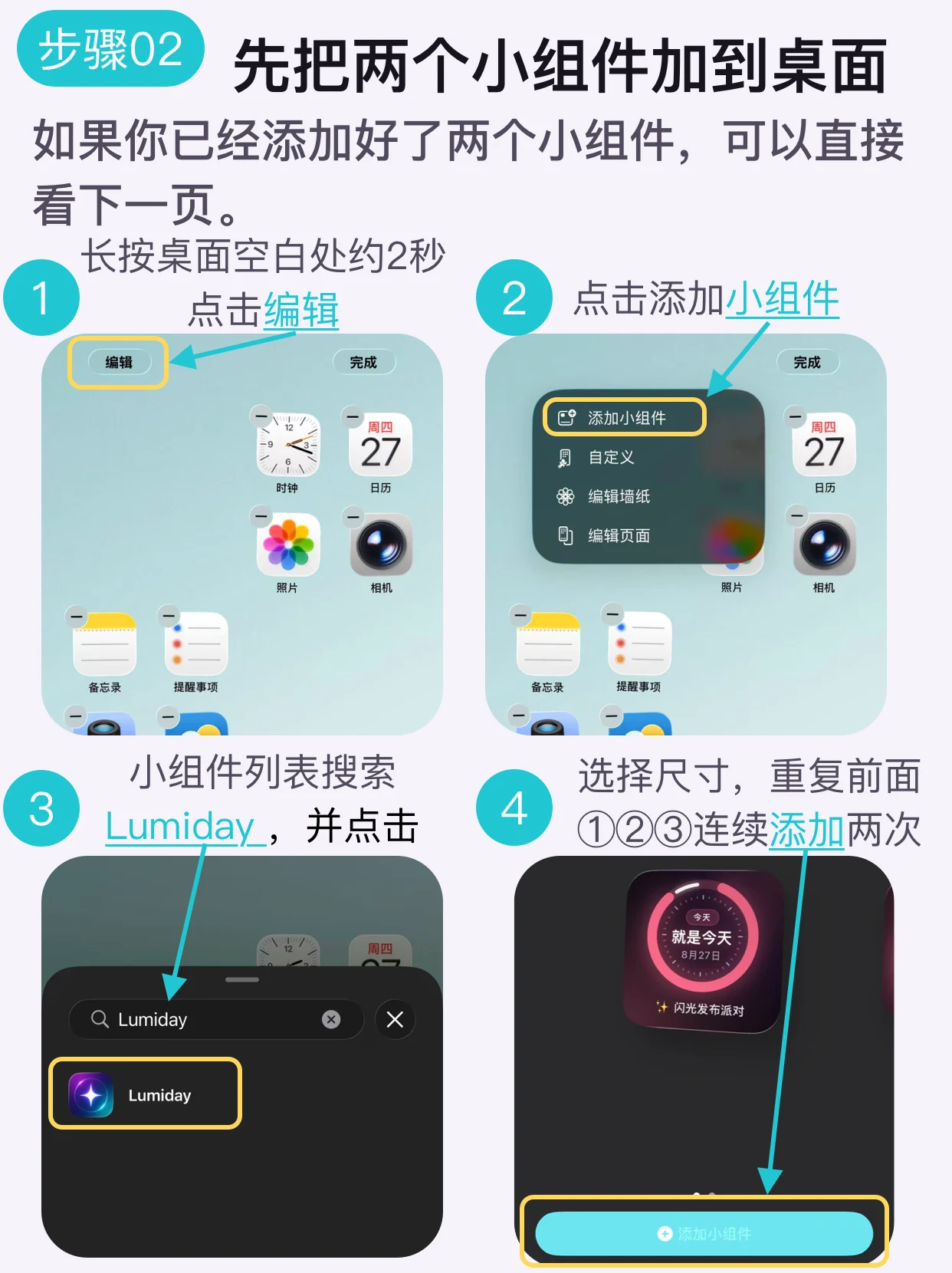
Add two Lumiday widgets
Open the widget gallery from your iPhone Home Screen and add two Lumiday widgets. Place them in separate spaces so both stay visible.
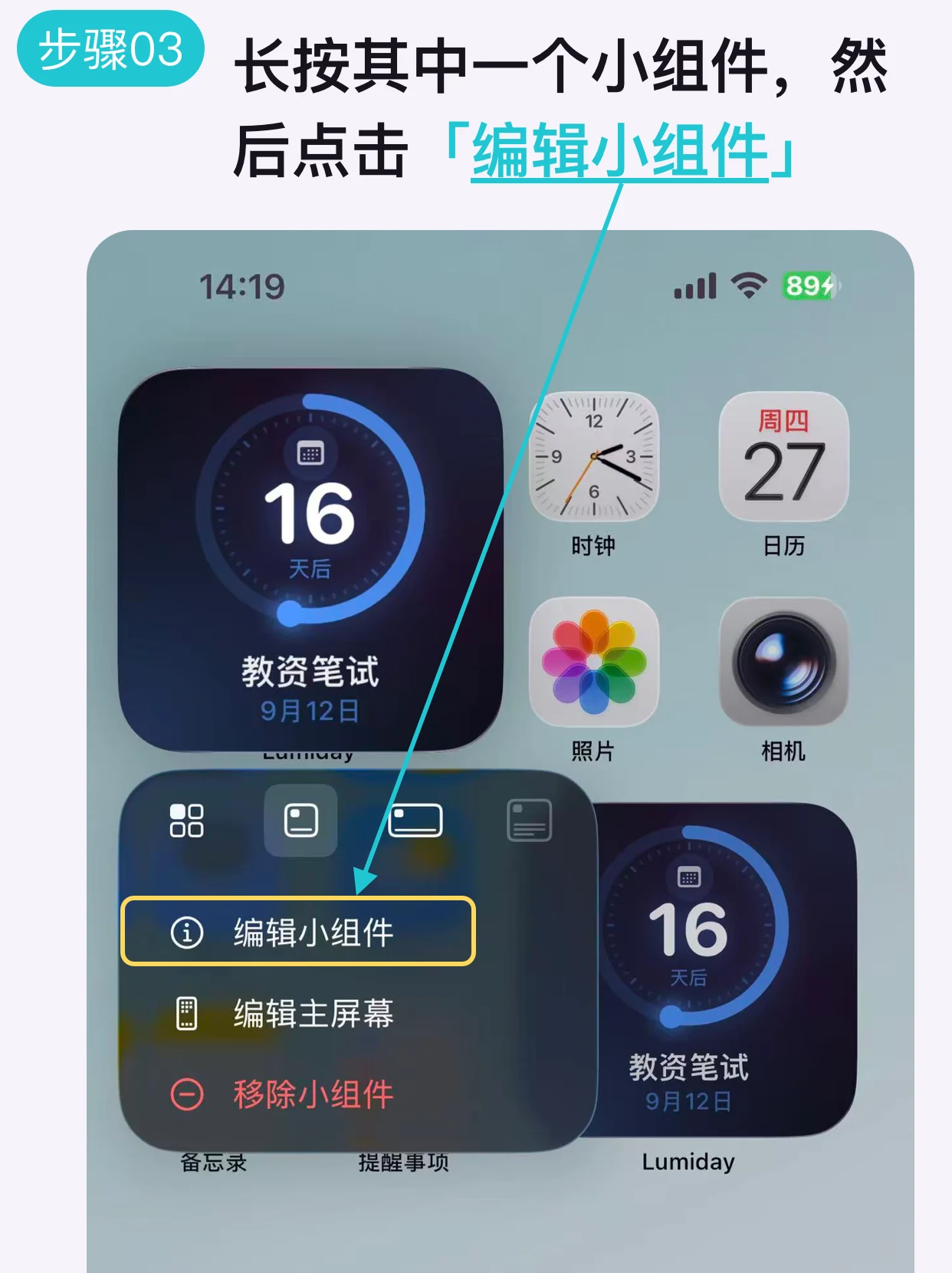
Edit the first widget
Touch and hold the first Lumiday widget, then tap Edit Widget.
Choose the first event and layout
Set Event Type to Specific Event and choose the first event. Select the layout you want for this widget.
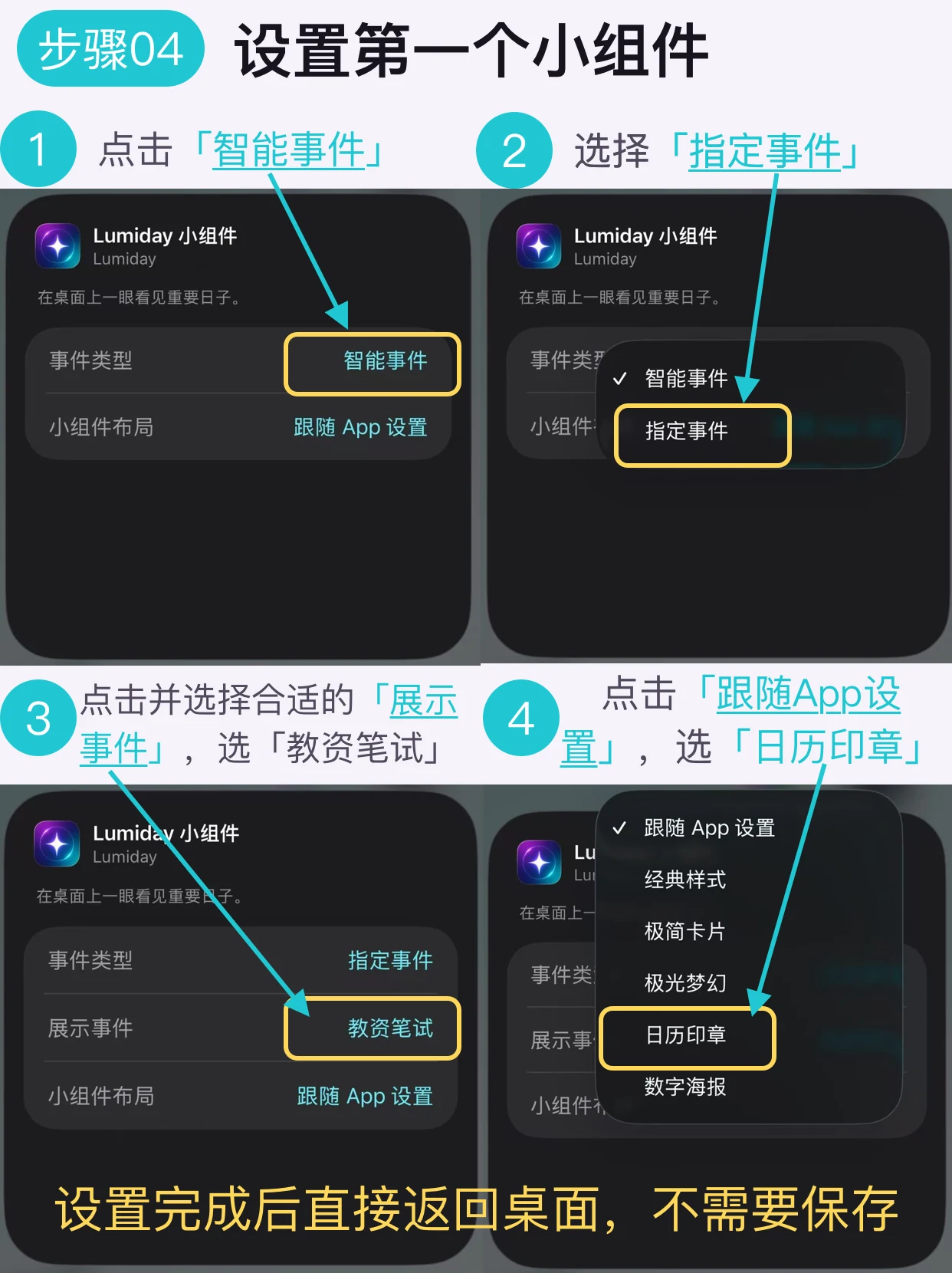
Set up the second widget
Touch and hold the second widget and tap Edit Widget. Set Event Type to Specific Event again, choose the other event and select its layout. Tap outside the widget to finish.
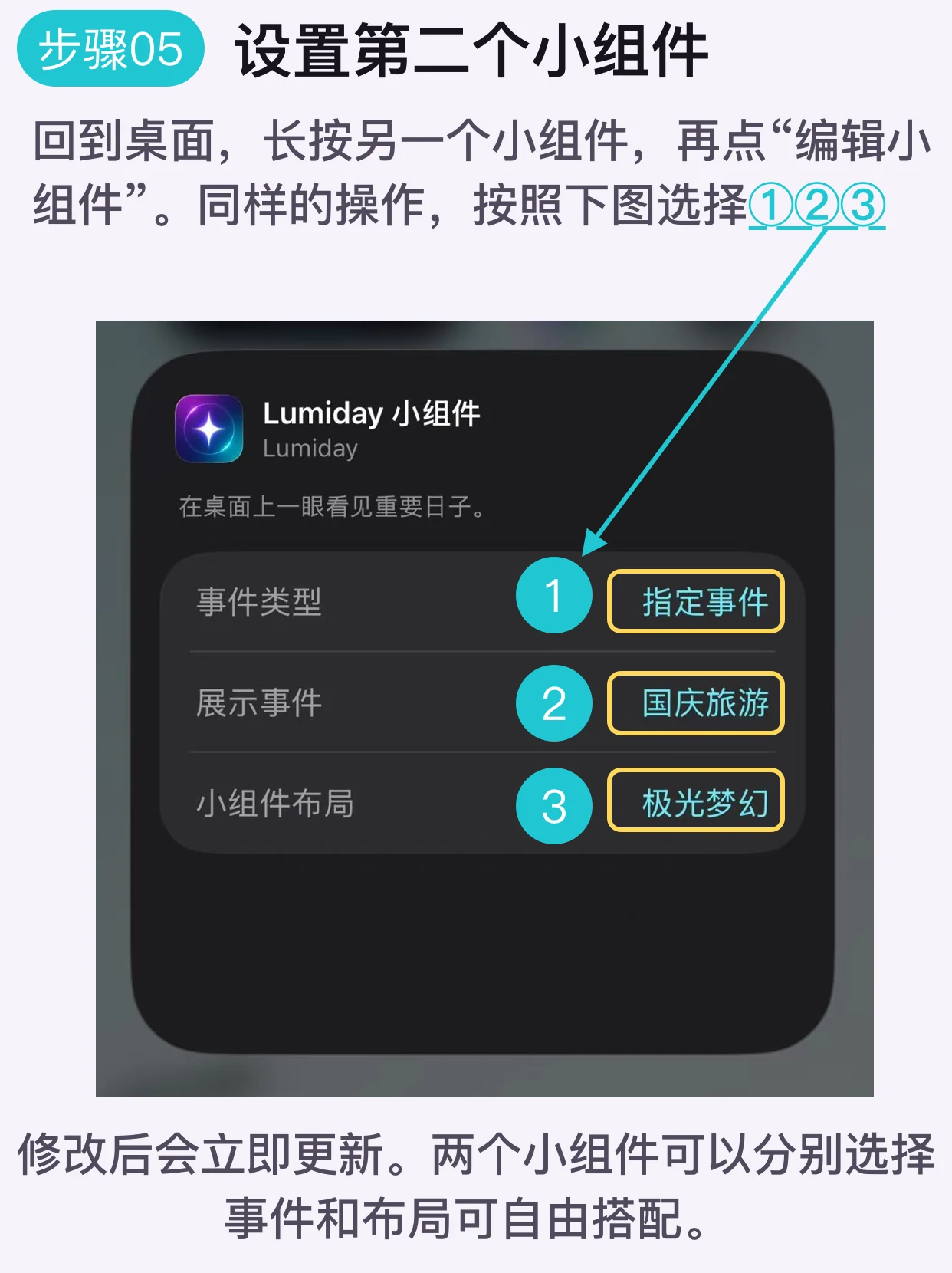
About iPhone Multiple Countdowns
How many countdowns can I show on my Home Screen?
You can add two or more separate Lumiday widgets. Choose one event for each widget and arrange them to fit your Home Screen.
Can the widgets use different layouts?
Yes. Each Home Screen widget can have its own event and layout.
Why do both widgets show the same countdown?
Edit each widget separately. Set Event Type to Specific Event, then choose a different event for each one.
Do I need an account to use Lumiday?
No. Lumiday requires no account and contains no ads. Your important dates stay on your device.
How can I see both countdowns at once instead of one at a time?
Place the two widgets in separate spaces on your Home Screen. Dragging one onto the other creates a stack, which shows one widget at a time. Edit each widget to select a different event.
Keep every important day on your Home Screen.
Lumiday is a countdown and date counter app for iPhone. You can add multiple independent widgets and select the events to display individually.
Download on the App Store