Keep your exam date and days remaining in view with a Lumiday countdown widget. Create the exam event, choose the Calendar Stamp style, then add a medium widget to your iPhone Home Screen.
What it looks like
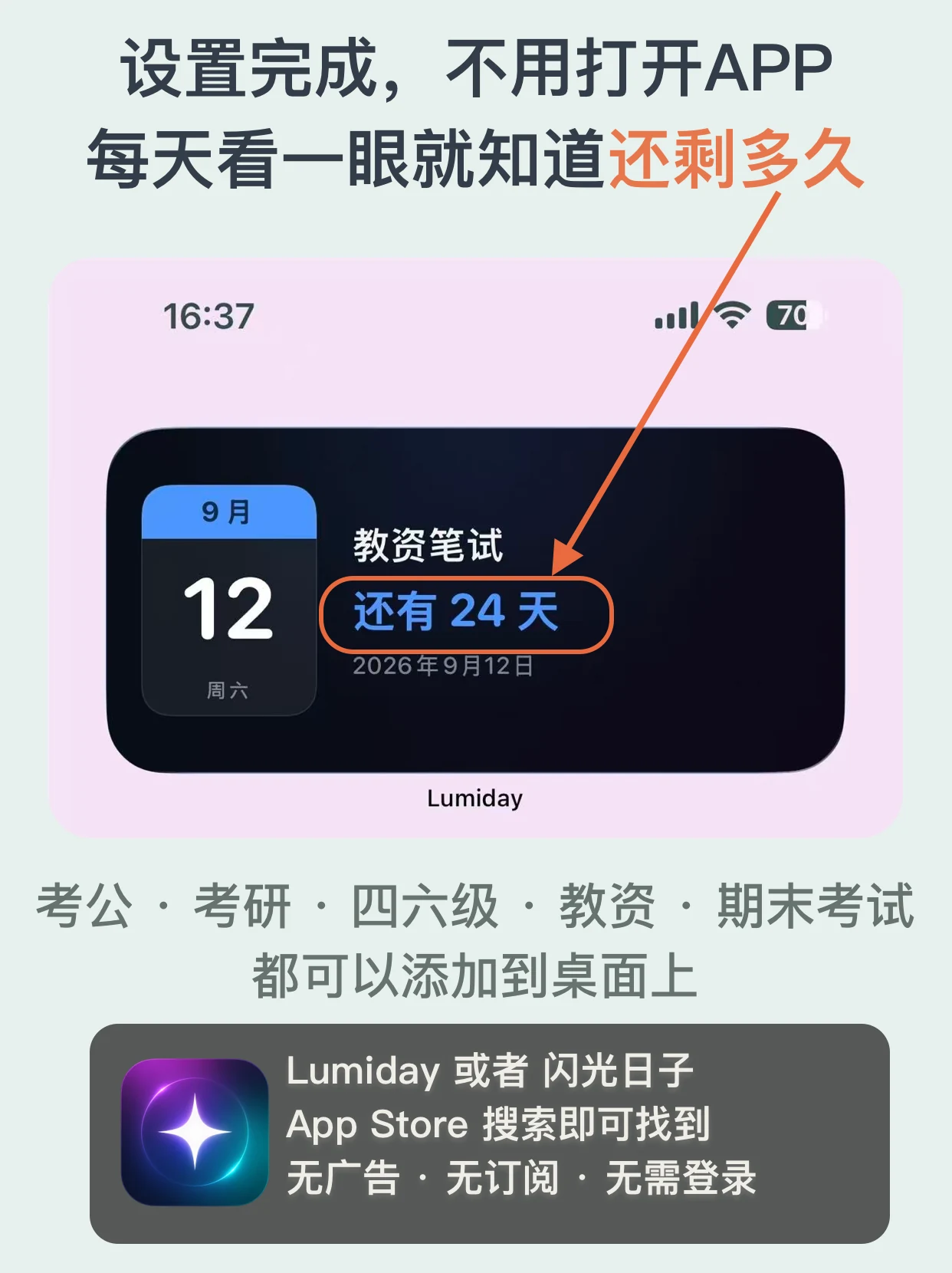
The screenshots use a teacher qualification exam as an example. The screenshots use Simplified Chinese and sample events. Use your own dates; labels may vary by language and iOS version.
Create an exam countdown
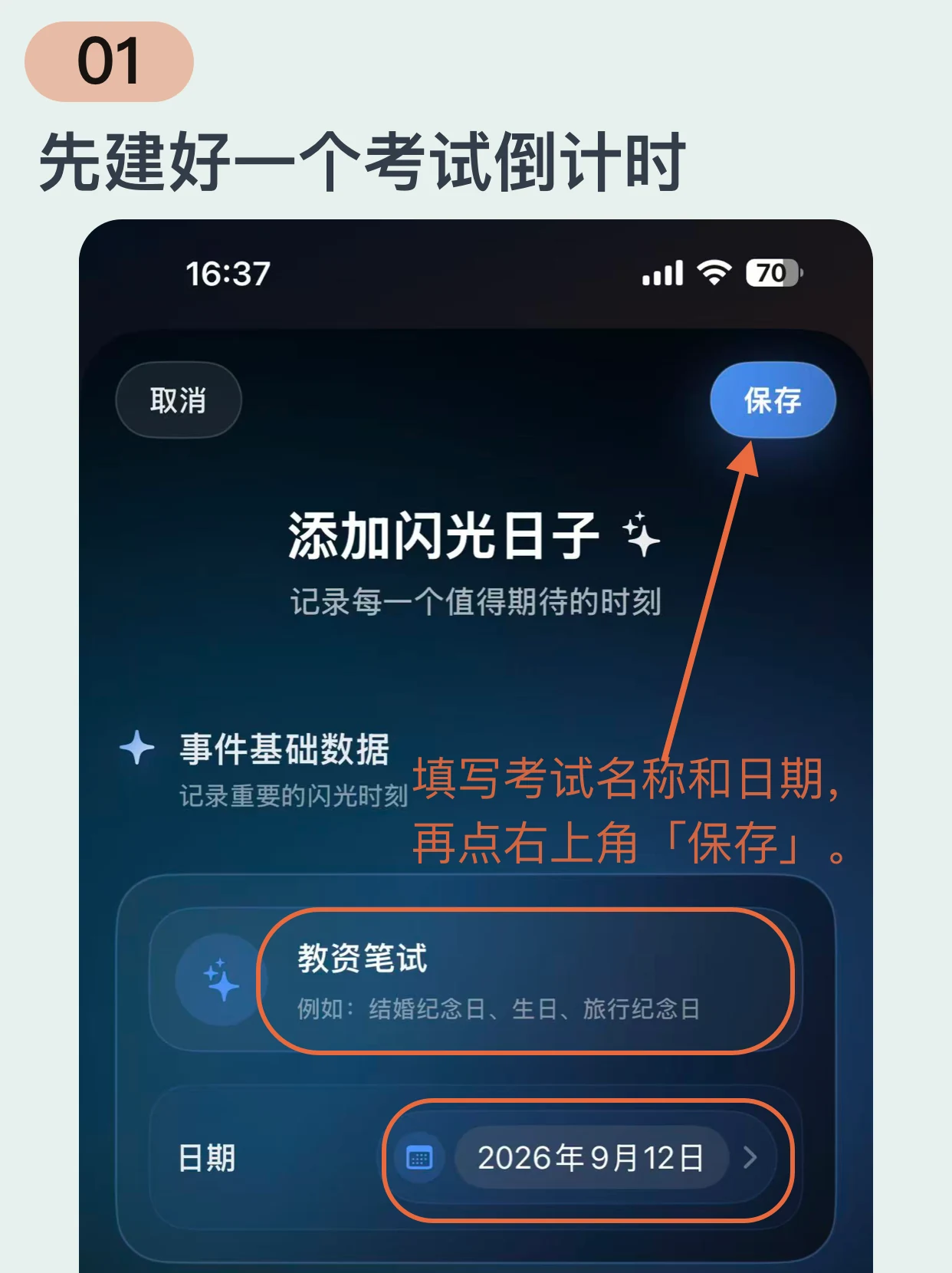
Open Lumiday, enter the exam name and choose its date. Tap Save in the top-right corner.
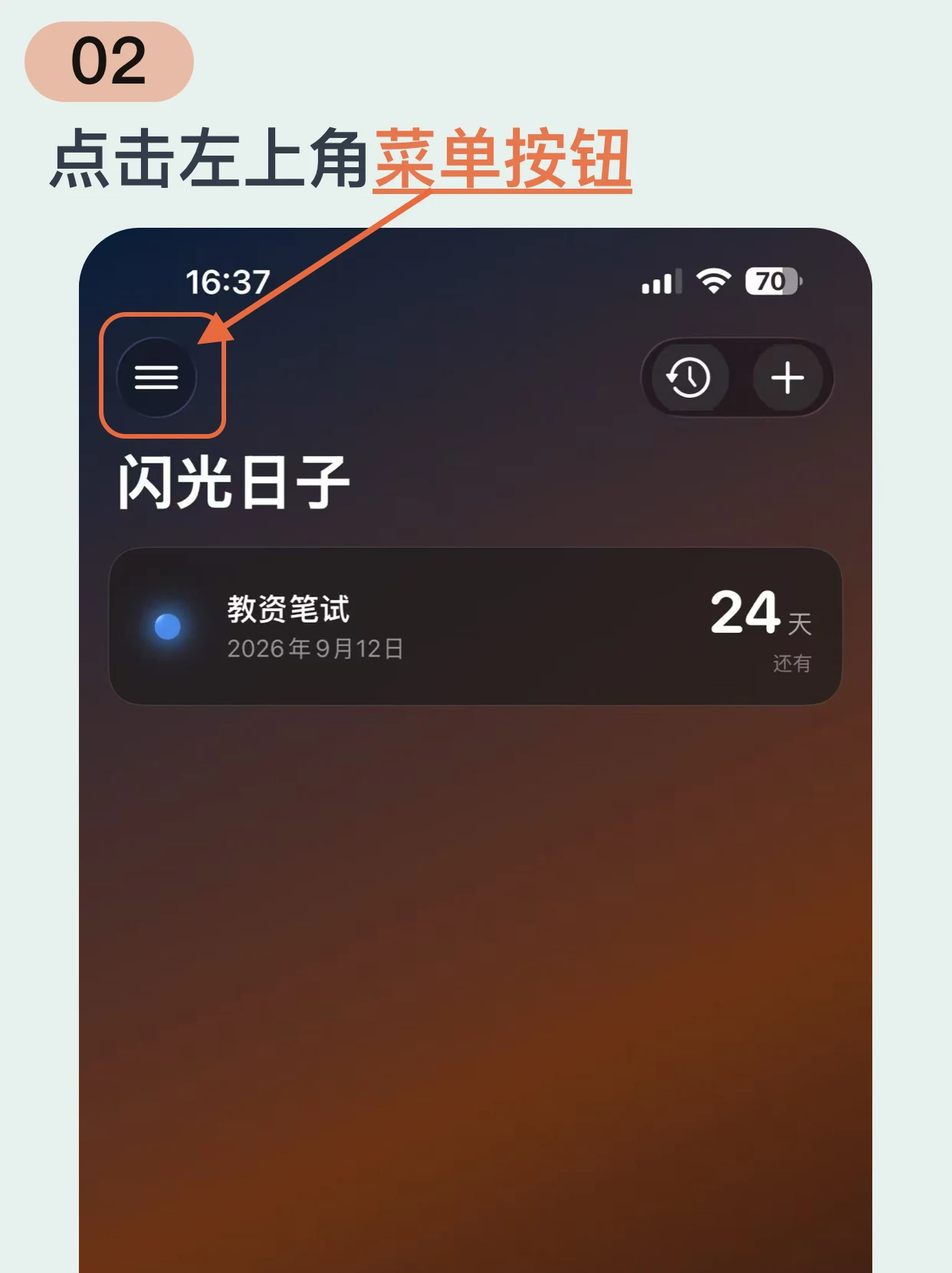
Open the app menu
Return to the main screen in Lumiday and tap the menu button in the top-left corner.
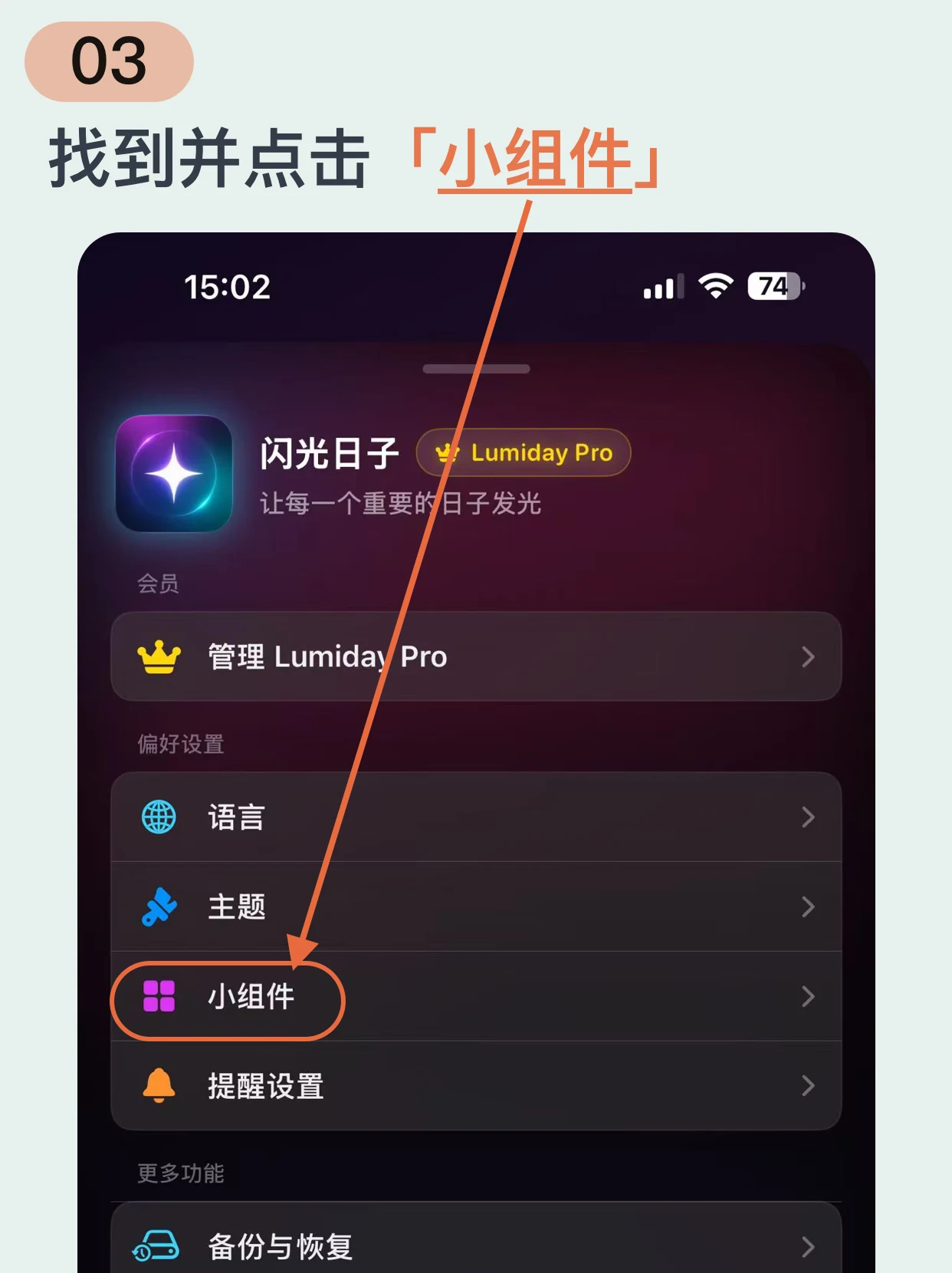
Open the widget settings
Choose Widgets from the menu to open the style settings.
Choose Calendar Stamp
Select Calendar Stamp from the available styles. It shows the exam name, date and days remaining.
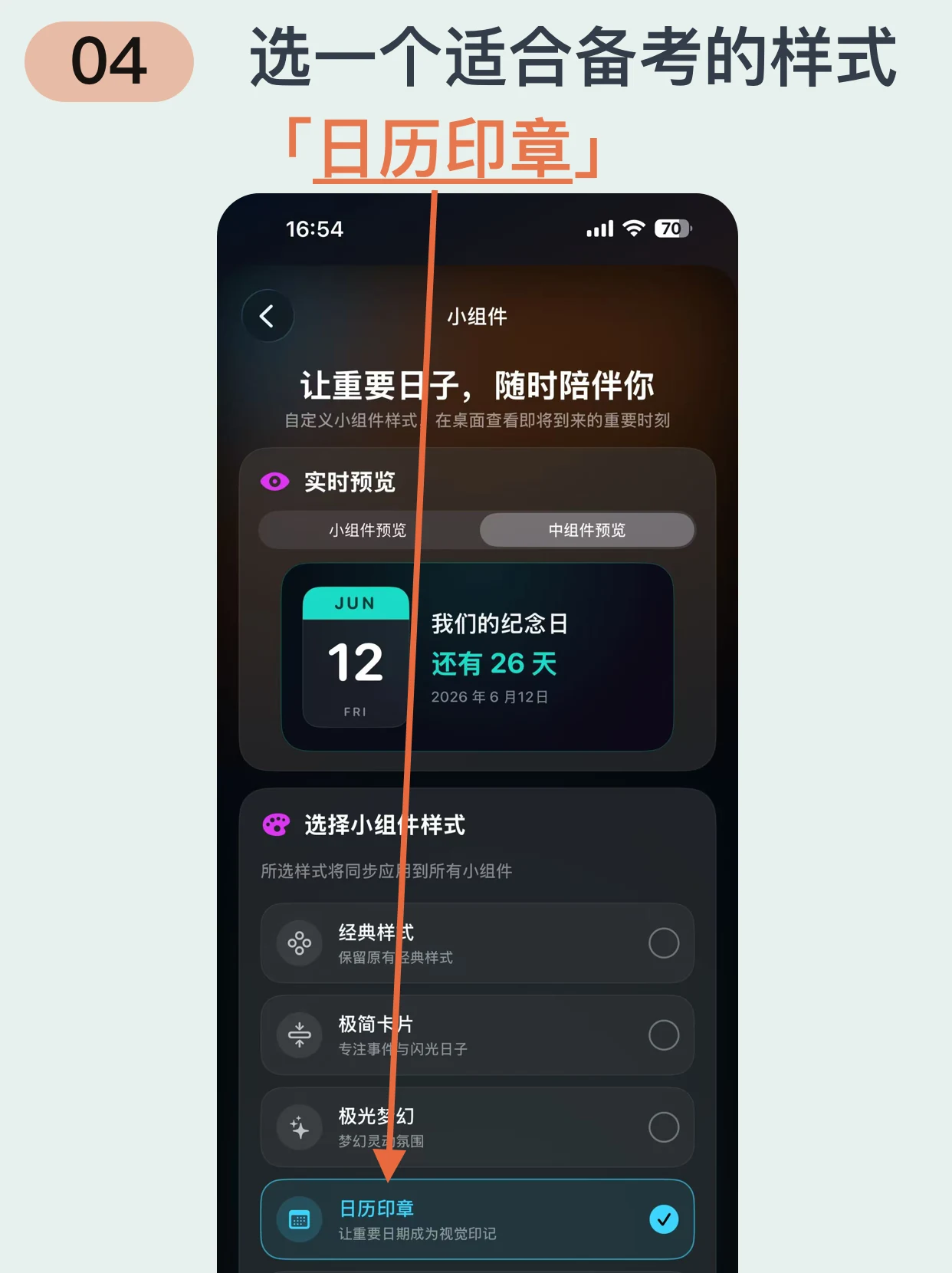
Add a medium Home Screen widget
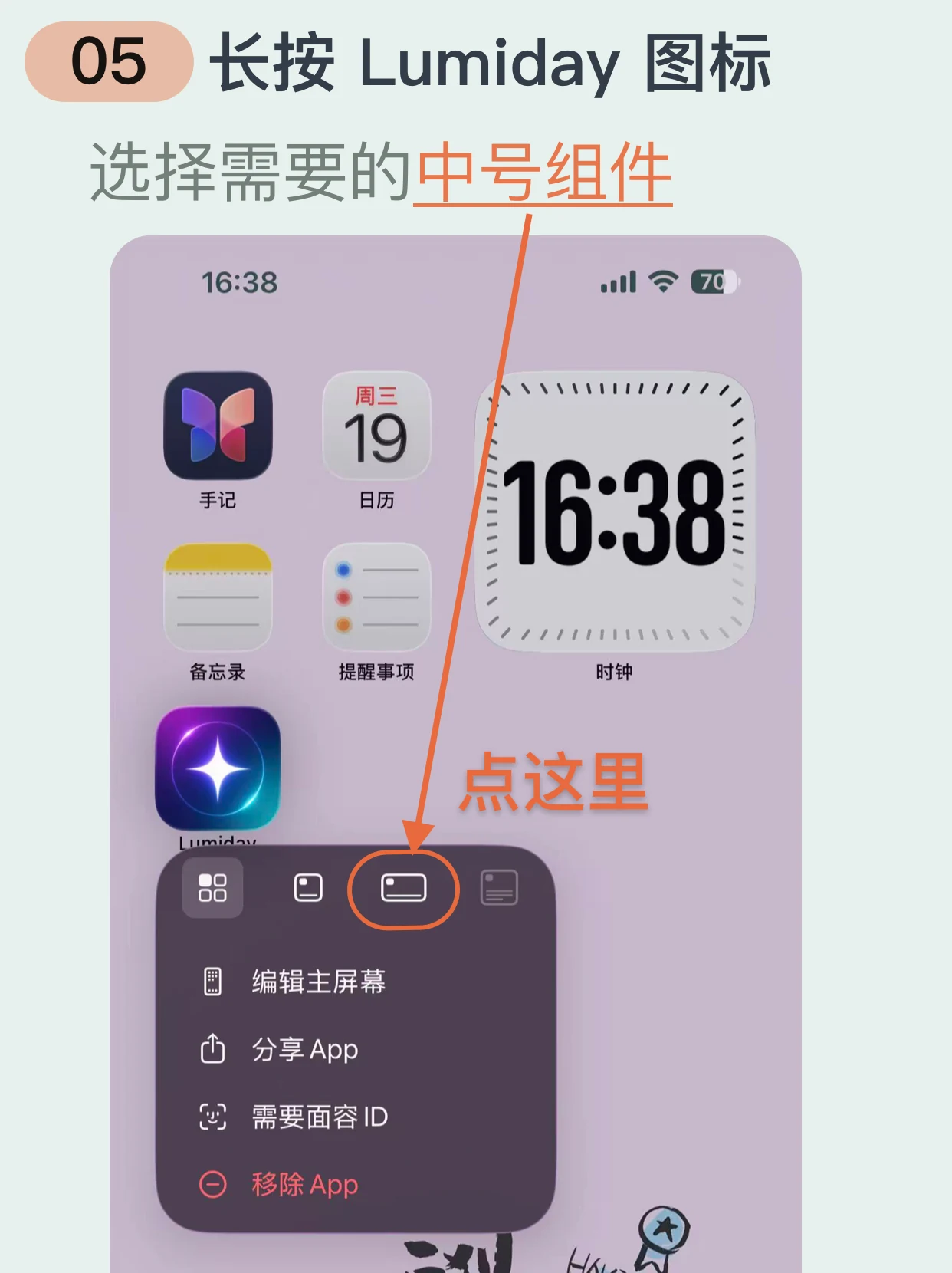
Return to your iPhone Home Screen, touch and hold the Lumiday icon and choose the medium widget. If the menu has no size options, use the widget gallery as explained below.
About exam countdowns on iPhone
Which exams can I count down to?
Use any exam date you have confirmed, such as a school final, entrance exam, language test or professional qualification exam. Enter your own exam name and date.
What does the exam widget show?
The medium Calendar Stamp widget shows the exam name, date and days remaining.
Do I need to open the app every day?
No. Once set up, the widget shows the days remaining on your Home Screen.
Do I need an account to use Lumiday?
No. Lumiday requires no account and contains no ads. Your important dates stay on your device.
What if the widget shows a different event?
Touch and hold the Lumiday widget and tap Edit Widget. Set Event Type to Specific Event, choose your exam and check that the layout is Calendar Stamp.
What if the app icon menu has no widget size options?
Touch and hold an empty area of your Home Screen, then open Add Widget from Edit (or the + button on some iOS versions). Find Lumiday and choose a size. Use the medium widget for the exam layout shown here.
Keep your exam date in sight.
Lumiday is a countdown and date counter app for iPhone.
Download on the App Store